How to Set Up Multiple Computer Monitors

Desktop with multiple computer monitors connected
You can add a lot of virtual workspace with two computer monitors to spread out your computer desktop, and most computers can easily accept dual monitors with very little setup. Whether you want more monitors & displays for games, video editing or just a larger workspace, these simple steps will help you set up your new displays.
Connecting Multiple Monitors:

  • Check for available video ports. If your laptop or desktop computer has extra video ports, such as VGA or DVI, you can easily connect a second computer monitor. Be sure to mark which video port type your computer needs before you buy a second LCD monitor. If the ports on the new monitor and your computer do not match, you will need a cable adapter to connect them.
  • Verify video setting options. Some computers -- especially older models -- have integrated graphics, which may not support dual computer monitors. Check the display settings on your computer to make sure your system can support multiple computer monitors. In Windows, you can reach Display Properties through the Control Panel menu. If your laptop or desktop has ports for extra computer monitor cables, it will probably support a second monitor.
  • Install a video card (optional). If your computer does not already include a video card, or has no second video port for additional computer monitors, you can expand its display capabilities by installing a video card. Most mid-range video cards support multiple monitors and will help your machine handle extra demands on graphics processing.
  • Connect the second monitor. With the computer and monitors turned off, connect the second monitor cable to the extra port on the back of the computer or on the video card. You may need to screw in the posts to secure the computer monitor cable. Then turn on the computer and both monitors.
  • Open the Display Settings menu. Your computer may automatically recognize the new LCD computer monitors. If not, you can adjust the settings through the Display Properties menu, mentioned above. Navigate to the Settings tab, where you should see two numbered boxes which represent your dual computer monitors.
  • Expand your desktop to both monitors. Click on the second monitor box and then mark the "Extend my Windows desktop to this monitor" checkbox near the bottom of the menu window. If these options are not available, you may need to check the connections for both computer monitors. Click "Apply" to finalize the settings and click "OK" to close the menu. You can now move your cursor, icons and program windows from one monitor screen to the other.

Essential Tablet Accessories

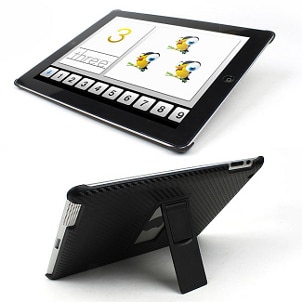
Black iPad case with a black stand
While you may often use your tablet on its own, you will likely need a few tablet accessories to access all of its features and keep it in good condition. Tablet accessories can make it easier to charge your tablet, transfer data to and from it or just prevent excessive wear and tear.
Tablet Accessories:

  • Cases: Every portable device is vulnerable to the bumps and scratches that come from being handled or just packed into your bag or briefcase. Different case materials can protect your tablet and give it a different look and feel. A silicone skin or plastic case effectively shields your tablet's body from most impacts and scratches and can provide a little bit of grip that might keep the slate from slipping out of your hands. Folding tablet PC cases usually cover the screen while you're not using it, and some designs fold backward as a stand for the screen as you watch videos.
  • Touch stylus: Touch-control gestures will probably work for most programs on your tablet, but a capacitive stylus -- for use with capacitive-touch LCD screens -- can be a more effective tool for fine controls, like handwriting or drawing. A stylus also leaves no fingerprints behind.
  • Screen protector: Tiny scratches, smudged fingerprints and dusty buildup can start to accumulate on your screen after a while, making your tablet PC seem dimmer and harder to read. A screen protector can help prevent all of these problems as well as reduce glare on the screen.
  • Portable chargers: A lot of tablets charge through your desktop or laptop computer via a USB cable, but that is not always an option. A separate wall-outlet adapter will let you charge nearly anywhere, and a tablet car-charger/adapter makes it simple to charge the tablet's battery during your commute.
  • Connector cables: Depending on your tablet model, you might have several connection ports available for transferring data, video and audio to and from the device. You might need an extra HDMI, USB or Ethernet cable to let you connect to different displays or non-wireless networks you encounter. Cables also allow you to connect to your tablet to your television.
  • Headphones: Unless your device includes onboard speakers, you will probably need headphones to enjoy audio. Headphones are always nice to have on hand for private listening anyway, and a good pair will give superior quality to your music and movies.
  • Keyboards: All tablets let you type on the virtual keyboard within the screen, but many also connect to a separate, full QWERTY keyboard as well. If you type for an extended period of time, you'll appreciate having a full keyboard. Some keyboards also act as chargers, as an added feature.

ข่าวเกมส์


Followers

ขับเคลื่อนโดย Blogger.

My Blog List

Site Info

จำนวนการดูหน้าเว็บรวม

Copyright © 2009 Blogger Template Designed by Tips Computer